
Ritesh Nayak
Notion Developer
Notion Keyboard Shortcuts for Beginners
•
13
Want to work faster in Notion? Mastering keyboard shortcuts is the key.
Instead of reaching for your mouse, you can use simple keystrokes to navigate pages, format text, and manage your workspace efficiently. Here’s a quick breakdown of the most helpful shortcuts for beginners:
Navigation: Move between pages with
Cmd/Ctrl + [(back) andCmd/Ctrl + ](forward). UseCmd/Ctrl + Pto search any page instantly.Page Management: Create a new page with
Cmd/Ctrl + N, or turn text into a page withCmd/Ctrl + Option/Shift + 9.Text Formatting: Bold (
Cmd/Ctrl + B), italic (Cmd/Ctrl + I), and underline (Cmd/Ctrl + U) with ease.Lists and Blocks: Use
Tabto indent,Shift + Tabto outdent, and/to access block options like bullet lists, to-dos, or toggles.
Pro Tip: Start with essential shortcuts like Cmd/Ctrl + P (Quick Find) or / (slash menu) and build from there. In just a week or two, these commands will feel natural and save you tons of time.
Quick Reference Table:
Action | Mac Shortcut | Windows Shortcut |
|---|---|---|
Go Back |
|
|
Open Quick Find |
|
|
Bold Text |
|
|
Create New Page |
|
|
Toggle Sidebar |
|
|
These shortcuts can double your productivity in Notion. Start small, focus on what you use most, and watch your workflow improve.
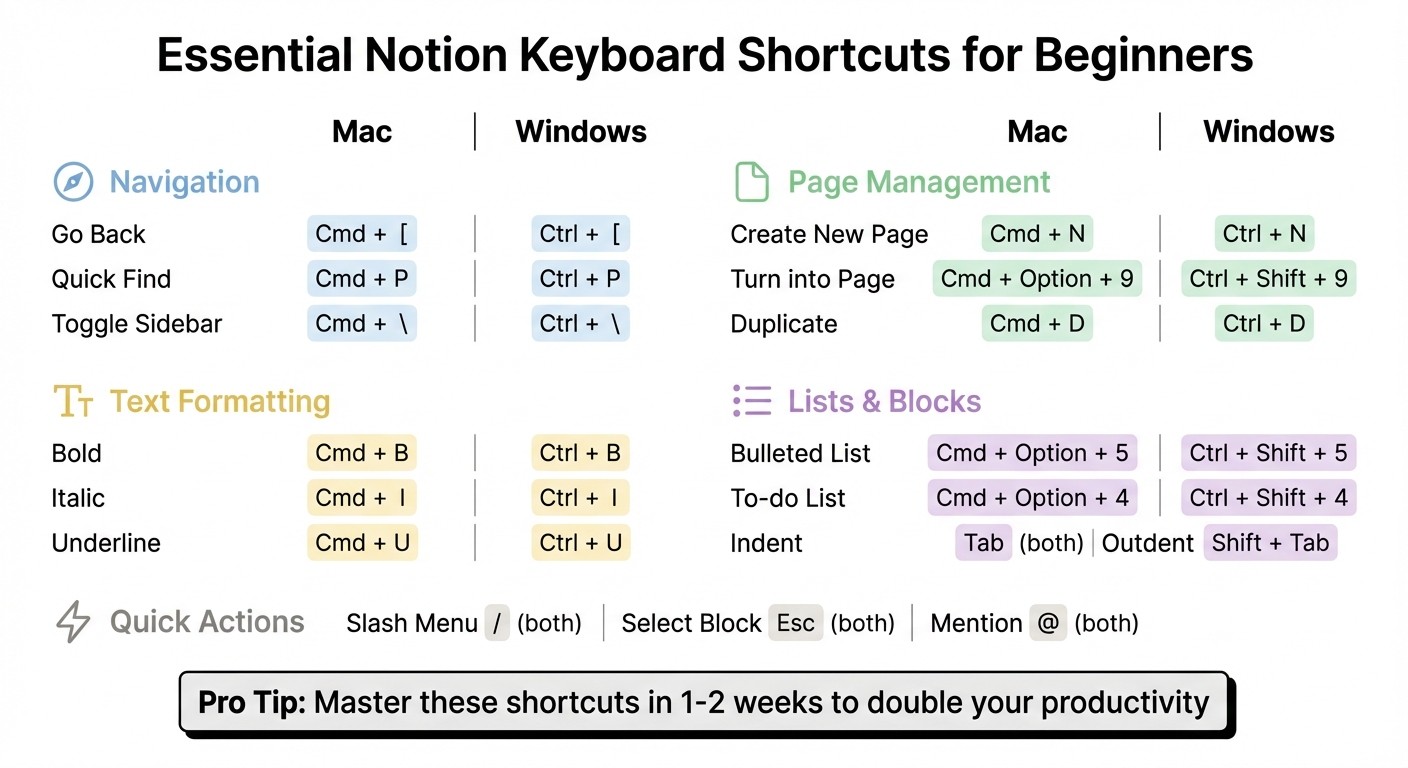
Essential Notion Keyboard Shortcuts Quick Reference Guide for Mac and Windows
Notion Shortcuts: Use the Keyboard to Maximize Productivity

Navigation Shortcuts
Learn the key shortcuts to quickly move between pages, search your workspace, and manage your layout with ease.
Moving Between Pages
Navigate effortlessly with these shortcuts:
Go backward:
Cmd/Ctrl + [Go forward:
Cmd/Ctrl + ]Access Quick Find:
Cmd/Ctrl + P(orCmd/Ctrl + K) to locate and open any page instantly.Move up one level in the page hierarchy:
Cmd/Ctrl + Shift + U.Switch between workspaces: Use
Cmd/Ctrl + 1, 2, 3...or open the workspace switcher withCmd/Ctrl + Shift + W.
Sidebar and Workspace Controls
Control your workspace layout smoothly with these shortcuts:
Toggle the sidebar:
Cmd/Ctrl + \to show or hide it. This helps you focus when working or viewing content, while still keeping navigation just a shortcut away.Open a new tab:
Cmd/Ctrl + T.Open a new window:
Cmd/Ctrl + Shift + Nfor multitasking.
Here’s a quick reference table for your navigation needs:
Action | Mac Shortcut | Windows Shortcut |
|---|---|---|
Go back to the previous page |
|
|
Go forward to the next page |
|
|
Open Quick Find / Search |
|
|
Toggle Sidebar |
|
|
Go up one level in hierarchy |
|
|
Switch Workspace |
|
|
Open a new tab |
|
|
Open a new window |
|
|
Page Management Shortcuts
Streamlining page creation and organization can make your workspace more efficient. These shortcuts let you create new pages, open them in various views, and manage your page hierarchy - all without touching your mouse.
Creating and Managing Pages
To quickly add a new page to your workspace sidebar, use Cmd/Ctrl + N. If you want to create an inline page, type /page and hit Enter. Need a sub-page? Simply type [[ or + followed by the page name - this keeps your workflow uninterrupted.
When working on one page but need to reference another, Cmd/Ctrl + Click opens the link in a new tab. Prefer a side-by-side view? Use Option/Alt + Shift + Click to open the page in a separate window.
You can also turn any text line into a page with Cmd/Ctrl + Option/Shift + 9. To reorganize your workspace, press Cmd/Ctrl + Shift + P to bring up the "Move to" menu or type /moveto for the same function.
Here’s a handy table of shortcuts to keep everything at your fingertips:
Action | Mac Shortcut | Windows Shortcut |
|---|---|---|
Create a new page |
|
|
Open link in new tab |
|
|
Open link in new window |
|
|
Turn block into a page |
|
|
Move page to new location |
|
|
Duplicate page or block |
|
|
Next, dive into text editing and formatting shortcuts to optimize your workflow even further.
Text Editing and Formatting Shortcuts
Notion gives you two quick ways to format text: keyboard shortcuts and Markdown syntax. Whether you prefer quick key combinations or typing Markdown characters, both options let you format text in no time.
Basic Text Editing
Here are some handy shortcuts to format text effortlessly:
Bold: Press
Cmd/Ctrl + BItalic: Press
Cmd/Ctrl + IUnderline: Press
Cmd/Ctrl + UStrikethrough: Press
Cmd/Ctrl + Shift + SInline code: Press
Cmd/Ctrl + E
Want to quickly add hyperlinks? Highlight your text and paste a URL with Cmd/Ctrl + V, or press Cmd/Ctrl + K to open the hyperlink dialog. To remove all formatting from selected text, use Cmd/Ctrl + \. If you’re working with colors, Cmd/Ctrl + Shift + H reapplies the last used color to your selection.
Notion also supports Markdown for instant formatting as you type. For example:
Use
**double asterisks**for bold.Use
*single asterisks*for italic.Use
~tildes~for strikethrough.
Need a divider? Just type three dashes (---) on a new line.
"In Notion, when you wrap text in Markdown characters, your formatting changes are applied immediately inside the editor. This is often called a WYSIWYG (What You See is What You Get) Markdown editor."
Next up, let’s look at creating lists and working with blocks.
Lists and Block Formatting
Creating lists in Notion is incredibly simple. Start with:
-,*, or+for bullet points.1.followed by a space for numbered lists.[](no space between brackets) for a checklist.
You can also turn existing text blocks into lists using shortcuts. Here’s how:
On Mac:
On Windows:
Want to adjust list items? Use Tab to indent or Shift + Tab to outdent. If you’re working with to-dos or toggle lists, Cmd/Ctrl + Enter lets you check/uncheck boxes or open/close toggles. For even more flexibility, the slash command menu (/) allows you to quickly convert blocks - just type /bullet, /todo, or /toggle.
Here’s a quick reference table for list formatting shortcuts:
Action | Mac Shortcut | Windows Shortcut |
|---|---|---|
Bulleted list |
|
|
To-do checklist |
|
|
Numbered list |
|
|
Indent list item |
|
|
Outdent list item |
|
|
Toggle checkbox/list |
|
|
Block and Content Shortcuts
Blocks are the building blocks of every Notion page. Knowing how to quickly add and manage them can make your work much smoother. As Notion Certified Consultant Rames Quinerie puts it, "By mastering these 30+ most used Notion shortcuts, you'll be able to navigate and edit your workspace at least two times faster."
These shortcuts work hand-in-hand with the navigation and page management commands we’ve covered earlier, making your workflow even more efficient.
Adding and Managing Blocks
The quickest way to add content is by typing /, which opens the slash command menu. From there, just type the block type you need - like /image, /todo, or /toggle - and press Enter. For even faster input, you can use Markdown triggers. For example, type > followed by Space to create a toggle list or " followed by Space to add a quote block.
Once your blocks are created, managing them is simple with shortcuts. Press Esc to select the current block, then use Cmd/Ctrl + Shift + Arrow keys to move it up or down. Want to duplicate a block? Hit Cmd/Ctrl + D. To delete it, press Backspace or Delete.
Indentation is straightforward too - use Tab to nest a block and Shift + Tab to outdent it. To select multiple blocks, press Esc and hold Shift + Up/Down arrows. For quick edits, access the block menu with Cmd/Ctrl + /.
Need to mention someone or link to another page? Just type @ and start typing their name or the page title. You can also toggle dark mode with Cmd/Ctrl + Shift + L or expand and collapse all toggles at once using Cmd/Ctrl + Option/Alt + T.
Action | Mac Shortcut | Windows Shortcut |
|---|---|---|
Open slash command menu |
|
|
Select current block |
|
|
Duplicate block |
|
|
Move block up/down |
|
|
Delete block |
|
|
Indent/nest block |
|
|
Outdent block |
|
|
Edit block type |
|
|
Mention page or person |
|
|
Toggle dark mode |
|
|
Expand/collapse all toggles |
|
|
Complete Shortcuts Reference Table
Here's a handy table that brings together all the essential Notion shortcuts in one place. Whether you're navigating pages, formatting text, or managing blocks, this reference covers everything you need. It includes both Mac and Windows commands, making it easy to find the right shortcut for your setup.
Action | Mac Shortcut | Windows Shortcut | Application |
|---|---|---|---|
Quick Find / Search |
|
| Jump to any page or recent search |
Create New Page |
|
| Start a new document (Desktop app only) |
Go Back |
|
| Return to the previous page in history |
Go Forward |
|
| Move forward to the next page in history |
Go to Parent Page |
|
| Move up one level in the page hierarchy |
Toggle Sidebar |
|
| Hide/show the sidebar to maximize workspace |
Toggle Dark Mode |
|
| Switch between light and dark themes |
Open Slash Menu |
|
| Access the full menu of content blocks |
Bold Text |
|
| Apply bold formatting to selected text |
Italicize Text |
|
| Apply italics to selected text |
Underline Text |
|
| Underline selected text |
Strikethrough |
|
| Cross out selected text |
Inline Code |
|
| Format text as a code snippet |
Create Hyperlink |
|
| Turn selected text into a link |
Add Comment |
|
| Create a comment on a block or text |
Duplicate Block |
|
| Make an exact copy of selected blocks |
Select Current Block |
|
| Select the block your cursor is in |
Delete Block |
|
| Remove the selected block(s) |
Indent / Nest |
|
| Nest a block inside the one above it |
Un-indent |
|
| Move a nested block out one level |
Move Block |
|
| Reorder blocks up or down on the page |
Turn into H1 |
|
| Convert current block to a large heading |
Turn into To-do |
|
| Convert current block to a checkbox |
Turn into Bullet List |
|
| Convert current block to a bulleted list |
Expand/Collapse Toggles |
|
| Open or close all toggle lists at once |
Copy Page URL |
|
| Copy the link of the current page |
Clear Formatting |
|
| Remove all styles from selected text |
New Window |
|
| Open a separate Notion window |
Emoji Picker |
|
| Open the system emoji selector |
Zoom In |
|
| Increase the size of text and interface |
Zoom Out |
|
| Decrease the size of text and interface |
This table makes it easier to incorporate shortcuts like Quick Find (Cmd/Ctrl + P) or the versatile slash command (/) into your workflow. Keep it nearby as you work to save time and streamline your Notion experience.
Conclusion
Mastering keyboard shortcuts can double your workspace navigation and editing speed. For a small investment of time, the productivity payoff is undeniable, and users often experience these benefits almost immediately.
The best part? The learning curve is short. Most people get comfortable with essential shortcuts within just one to two weeks of consistent use. As Kurt Langston, Head of AI News Coverage and Content at KnowYourMobile, explains:
"The initial adjustment period of a week or two was a small price to pay for what now feels like a seamless extension of my cognitive processes".
Start simple. Focus on foundational shortcuts like Cmd/Ctrl + P for Quick Find, the / slash command for blocks, and Cmd/Ctrl + B for bold text. From there, tailor your efforts to shortcuts that align with your daily workflow - whether that's creating pages, formatting content, or managing databases.
To make the transition smoother, keep a reference table nearby during your first few weeks. Before reaching for the mouse, take a moment to check if a shortcut can get the job done faster. With regular practice, these commands will become second nature, empowering you to work faster and more confidently in Notion.
FAQs
What are the must-know Notion keyboard shortcuts for beginners?
Here are some handy Notion keyboard shortcuts to help beginners navigate and work more smoothly:
Ctrl/Cmd + F: Search within the current page.
Ctrl/Cmd + P (or K): Open the Quick Find menu for easy access to pages.
Ctrl/Cmd + L: Copy the URL of the page you're on.
Ctrl/Cmd + [ and Ctrl/Cmd + ]: Move backward and forward through your navigation history.
Ctrl/Cmd + Shift + L: Switch between dark mode and light mode.
Ctrl/Cmd + N: Create a brand-new page.
Ctrl/Cmd + Shift + N: Open a fresh Notion window.
These shortcuts can save you time and make it easier to get the hang of Notion’s features!
What are the best keyboard shortcuts for navigating between pages in Notion?
Quickly navigate through Notion with these keyboard shortcuts that save you time and clicks:
Jump back to the last page you viewed: Use
Ctrl + [on Windows/Linux orCmd + [on macOS.Move forward to the next page in your history: Hit
Ctrl + ]on Windows/Linux orCmd + ]on macOS.Search and jump to any page with Quick Find: Press
Ctrl + P(Windows/Linux) orCmd + P(macOS). Alternatively, useCtrl + KorCmd + Kfor the same action.Switch between linked pages in a database peek view:
These shortcuts let you explore your workspace, revisit recent pages, and navigate linked content effortlessly - all without touching the mouse.
What are the most useful Notion text formatting shortcuts for beginners?
Here are some handy text formatting shortcuts in Notion that can help you speed up your workflow:
Bold: Press
Cmd/Ctrl+BItalic: Use
Cmd/Ctrl+IStrikethrough: Hit
Cmd/Ctrl+Shift+SAdd hyperlink: Try
Cmd/Ctrl+KInline code: Tap
Cmd/Ctrl+E
These simple shortcuts are perfect for beginners and can make formatting your notes or documents in Notion much quicker.
Ritesh Nayak
Ritesh Nayak
Ritesh Nayak
Ritesh Nayak
Ritesh Nayak